Setting up Sanctuary
In this order — the Mac app builds the library everything else reads, so it goes first. Steps 6–8 are optional; each unlocks more.
- 1
Install the Mac app
Download Sanctuary (Apple Silicon Macs), unzip, and drag it into Applications. Everything happens on your machine — there is no account to create.
- 2
Pick your sources
The first screen asks where your memory should come from: Messages (iMessage & SMS), WhatsApp, Obsidian, Notion. Tick what you use — you can change it later under Profile → Data sources, where Mail, Instagram saves, LinkedIn, ChatGPT and Claude exports, and browser history live too. If you don't use iMessage, skip it; the rest of setup adapts and Full Disk Access becomes optional.
- WhatsApp — install WhatsApp for Mac and link it to your phone once. Sanctuary reads its local history from then on.
- Obsidian — choose the vault folder. Notes and the links inside them join the library, and Ask can open them.
- Notion — Settings → Export (Markdown & CSV, include subpages), then drop the zip or folder in.
- 3
Grant Full Disk Access
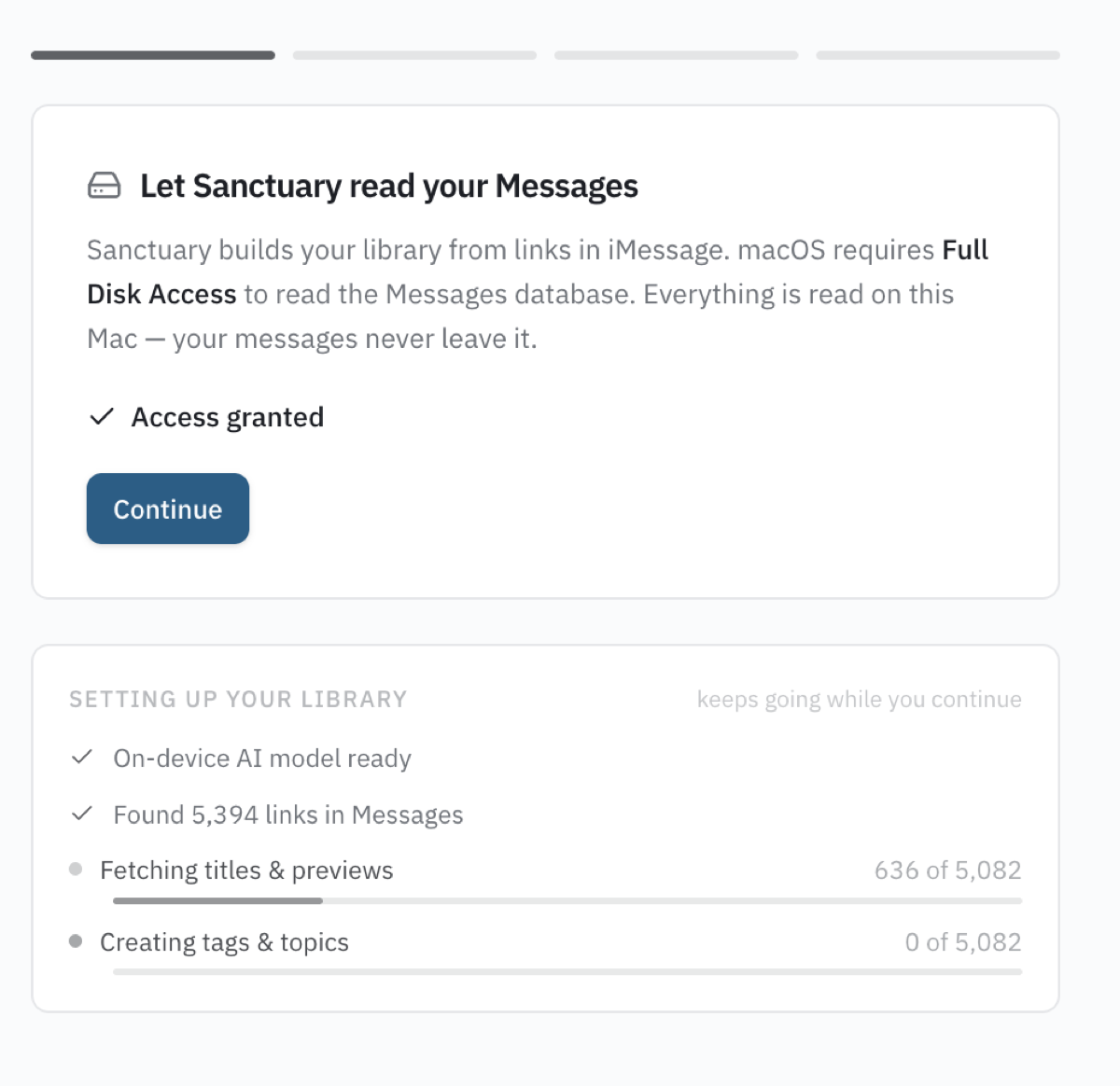
If you ticked Messages, macOS requires Full Disk Access to read its database. The onboarding button takes you straight to the right pane — flip the toggle next to Sanctuary:
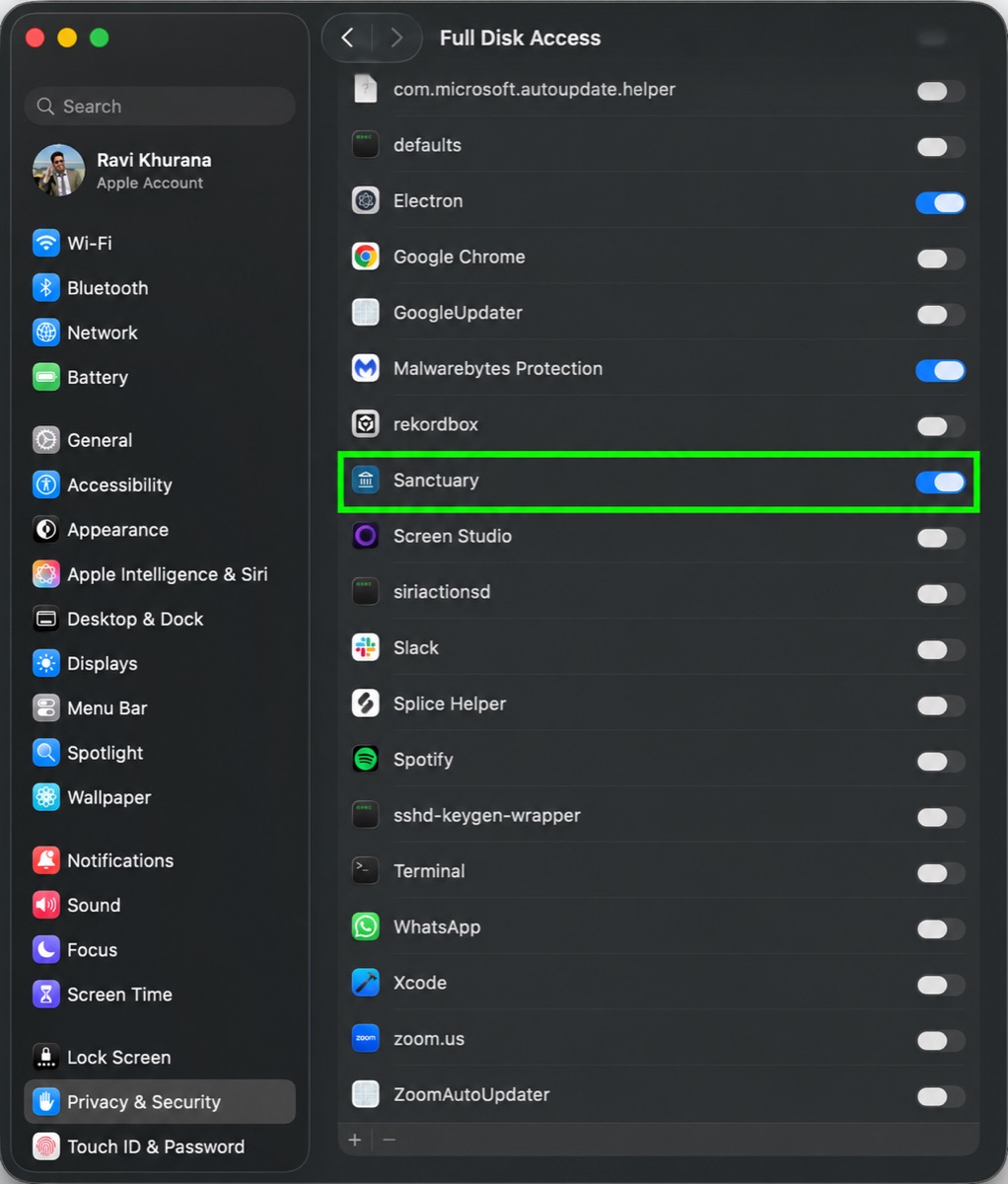
System Settings → Privacy & Security → Full Disk Access The app relaunches, and the step confirms itself. Everything is read on this Mac — your messages never leave it.
- 4
Connect Contacts — same screen
Once access lands, the same screen offers Contacts, so everything shows who it came from — "Maya Chen", not "+1 555…". Your address book is read on-device and never uploaded. Your history indexes in the background from this moment on; nothing in onboarding waits for it.
- 5
Two optional keys
Sanctuary ships no keys and runs a private model on your Mac, so everything works with neither. Both keys are yours, pay-per-token, stored only on this Mac, and you can add them later from Profile:
- Tinfoil — sharper categories, project sorting and Ask answers, inside a secure enclave. Create one at tinfoil.sh (it starts with tk_). It sends page titles, URLs and one short excerpt per link — never your messages.
- Parallel — web search for the Feed, from platform.parallel.ai. Only topic keywords are sent — never messages, contacts or your links.
Find tasks in my messages is the separate opt-in under the Tinfoil key. It reads conversation text to surface commitments and unanswered questions, so it's off until you turn it on. See the privacy policy for exactly what it sends.
- 6
Let drafted replies paste themselves (optional)
When a task needs a reply, the ✨ button drafts one and opens the right Messages thread. With one extra permission, Sanctuary also pastes the draft into the compose box for you — macOS gates synthetic keystrokes behind Accessibility. The first ✨ prompts you; flip the toggle next to Sanctuary:
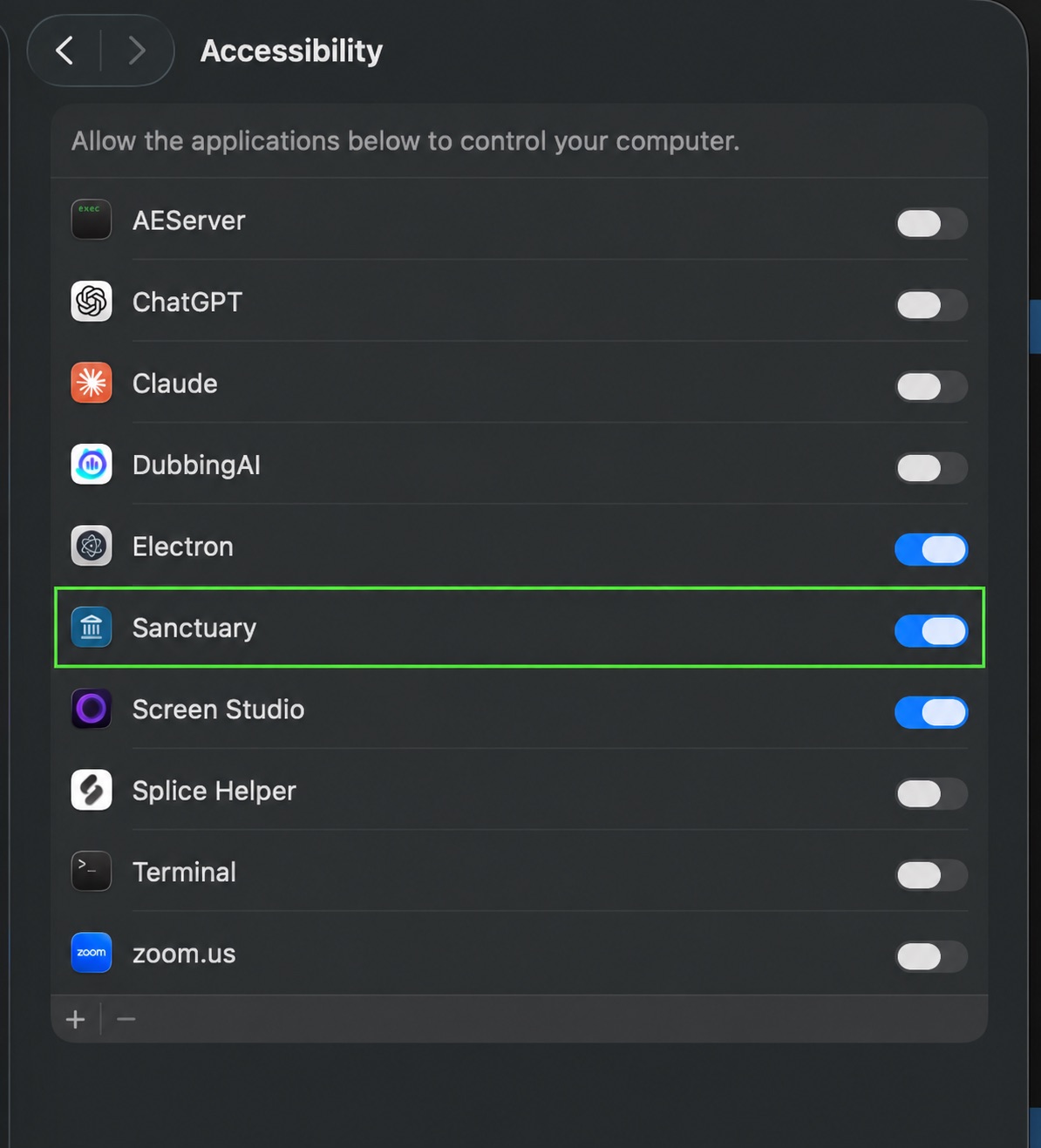
System Settings → Privacy & Security → Accessibility Sanctuary never sends the message — you review the paste and hit return yourself. Without the permission the flow still works: the draft lands on your clipboard, the thread opens, and you paste it. The state is always visible under Profile → Permissions.
- 7
Set up the iPhone app
Join the beta on TestFlight and install Sanctuary. Pairing is automatic — there is no code and no account:
- Sign both devices into the same Apple ID with iCloud Drive turned on.
- Open the iPhone app once — that registers the private iCloud container the two apps share.
- Your library arrives within a few minutes of the Mac's next sync; captures and task dismissals on the phone flow back the same way.
Ask and reply drafting on the phone use their own key, entered on the Ask tab — it lives in the iPhone's Keychain and is never synced.
- 8
Connect your AI assistant over MCP
Sanctuary ships a Model Context Protocol server so assistants like Claude Code can answer "what was that link Sahil sent me?" from your library — without ever seeing message text. One command registers it:
npx -y @linksanctuary/mcp init
That finds your library and registers the server with your Claude clients (Node 22.5+ required). It reads only the distilled library the Mac app builds — read-only, no Full Disk Access for your terminal or assistant, and it works even while the app is closed.